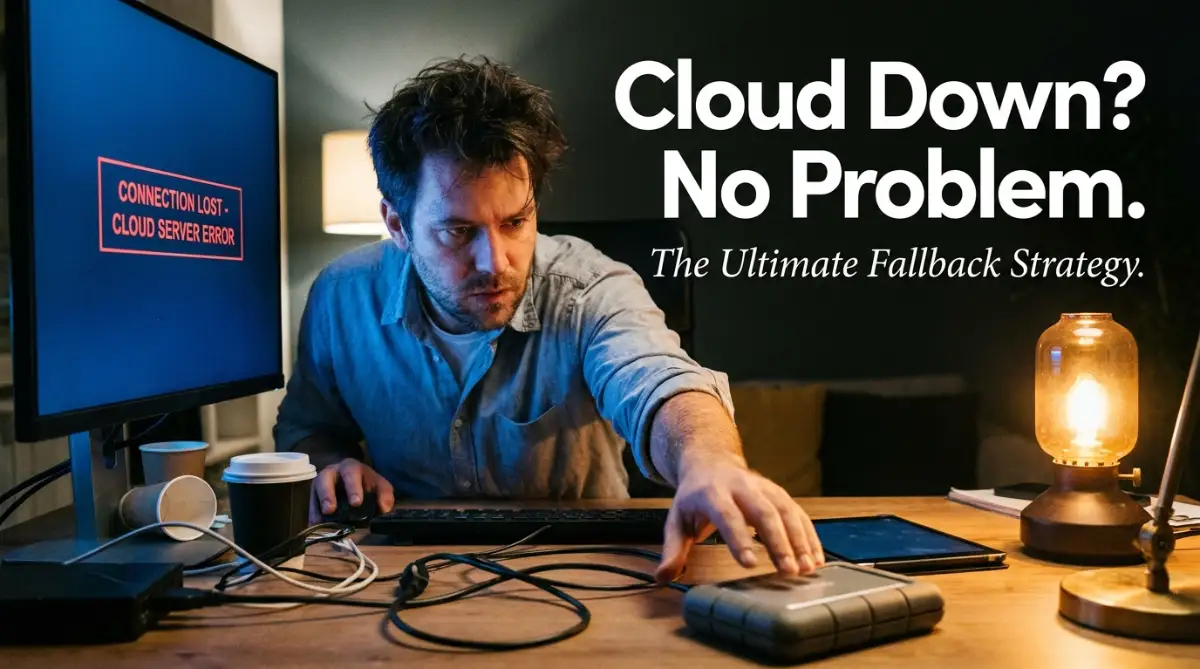
The Heart-Dropping Moment The Screen Goes Blank
You are typing away, crushing your daily tasks, and suddenly—boom. The screen freezes, and that dreaded "503 Service Unavailable" error pops up. Your stomach completely drops because every single file you need for your afternoon meeting is locked inside a broken cloud drive. Before you panic and send an embarrassing apology email to your boss, let me show you how to bulletproof your remote workflow. I am going to share the exact backup system I use so you never lose another minute of work to a random server crash again.
When your entire professional life lives on servers you do not own, a sudden outage feels like the ground vanishing beneath your feet. You suddenly realize that your productivity, your reputation, and your income are tied to invisible networks. We trust these platforms blindly every single day. But when they break, the resulting stress is completely overwhelming.
We often forget that software platforms are not perfect. No matter how massive the tech company is, server crashes, bad code updates, and routing errors happen all the time. If you rely on just one platform for everything, you are walking on a tightrope without a safety net.
The 1-Minute Cloud Survival Guide:
- Two is One, One is None: Never leave your active projects sitting purely on a web browser. Always sync a hard copy to your physical desktop.
- Have a Secret Chat App: Agree on a backup messenger (like Signal or standard text messages) with your team so you can talk when the main company software goes down.
- Draft Offline First: Write your heavy documents in a basic, offline notepad on your computer. Only paste it into the cloud when you are 100% finished.
- Get a Backup Internet Highway: Practice connecting your laptop to your phone's cellular hotspot so you are ready if your home Wi-Fi cable gets cut.
Bulletproof Strategies To Keep Working When Servers Crash
The good news is that you never have to feel that kind of helpless panic again. You can build a personal safety net that kicks in the exact second your primary tools fail. This is not about becoming a high-level network engineer. It is simply about having smart, logical alternatives ready to go before disaster strikes. Let us explore exactly how you can build an unbreakable workflow.
Creating A Seamless Local Data Bridge
The biggest mistake remote workers make is treating their cloud drive as the only copy of their files. If you edit a document directly in your browser and nowhere else, a server crash locks you out completely. You need a system where your files live on your physical desk and the internet at the same time.
Instead of relying purely on a browser interface, always install the desktop version of your storage app. Set it up to mirror your most important current projects directly onto your hard drive. This means if the web app goes dark, the physical file is still sitting right there on your local machine. You can keep editing, saving, and working as if nothing happened.
Wait, what if the desktop app tries to sync and deletes your local file during an outage? This is exactly why you need a secondary local backup. Consider getting an external Solid State Drive (SSD). You can plug this small device into your laptop and set your computer to automatically copy your work folder to the SSD every single night.
If the primary internet server completely vanishes, you just pull your files from the physical SSD. It acts like a protective vault that sits right on your desk. Once the internet platforms recover, you simply upload the finished, updated versions back into the main system. This simple hardware habit guarantees you never lose access to your current tasks.
The 60-Second Disaster Drill (What to do when the screen goes blank):
- Check your own connection: Open a random website (like YouTube) just to make sure your home router didn't simply restart.
- Check the status page: Go to DownDetector.com to see if other people are reporting the exact same outage.
- Switch to offline mode: Unplug your laptop from the internet, open your physical SSD drive, and keep working on your local draft.
Implementing A Dark Mode Communication Plan
When the main chat app your company uses goes offline, the silence can be terrifying. You suddenly cannot reach your team, and they cannot reach you. This lack of communication often causes more panic than the actual software failure itself. You must establish a secondary way to talk to your team before the main channels break.
Think of this like a fire drill for your office communications. You and your main contacts need an agreed-upon secondary application. If your main workspace chat crashes, everyone should automatically know to switch to a specific backup messenger. This could be a secure platform like Signal or even a simple dedicated group text message.
Your boss and your teammates need to know you are still online and working. Just sending a quick message saying, "The main system is down, but I am working on the offline files" instantly builds trust. It proves you are professional and prepared.
I highly recommend watching this quick video on how to set up secondary communication channels so your team never misses a beat during an outage.
Do not wait until the system breaks to ask people for their secondary contact details. Keep a simple, printed list of phone numbers or backup emails for your key clients and team members. When the internet goes dark, a piece of paper on your desk is the most reliable database in the world.
Switching To Offline-Capable Software Alternatives
Many modern tools simply refuse to load if they cannot detect an active internet connection. If your favorite writing app or design tool requires a web browser to function, you are taking a massive risk. You need software that works just as beautifully offline as it does online.
I learned this the hard way during a massive storm. I was using a popular web-only note app to outline a major project. My Wi-Fi dropped, the page auto-refreshed, and I stared at a blank screen for three hours. My Pro Tip for you: Always draft your heavy text or creative ideas in a dedicated desktop application first. I now use a basic markdown editor saved to my local drive, and I only paste the final text into the web platforms when the work is 100% finished.
Find offline alternatives for your daily tools. If you use a web-based design program, ensure you have a similar desktop program installed just in case. You do not need to use the backup software every day. It just needs to sit quietly on your computer, ready to launch when the primary option fails.
Myth vs. Reality: The Cloud Safety Illusion
- The Myth: Massive tech companies have so many servers that my data is 100% safe and always accessible.
- The Reality: Even the biggest tech giants experience routing issues, cyber attacks, and bad updates. Your access can be blocked for hours, completely freezing your income.
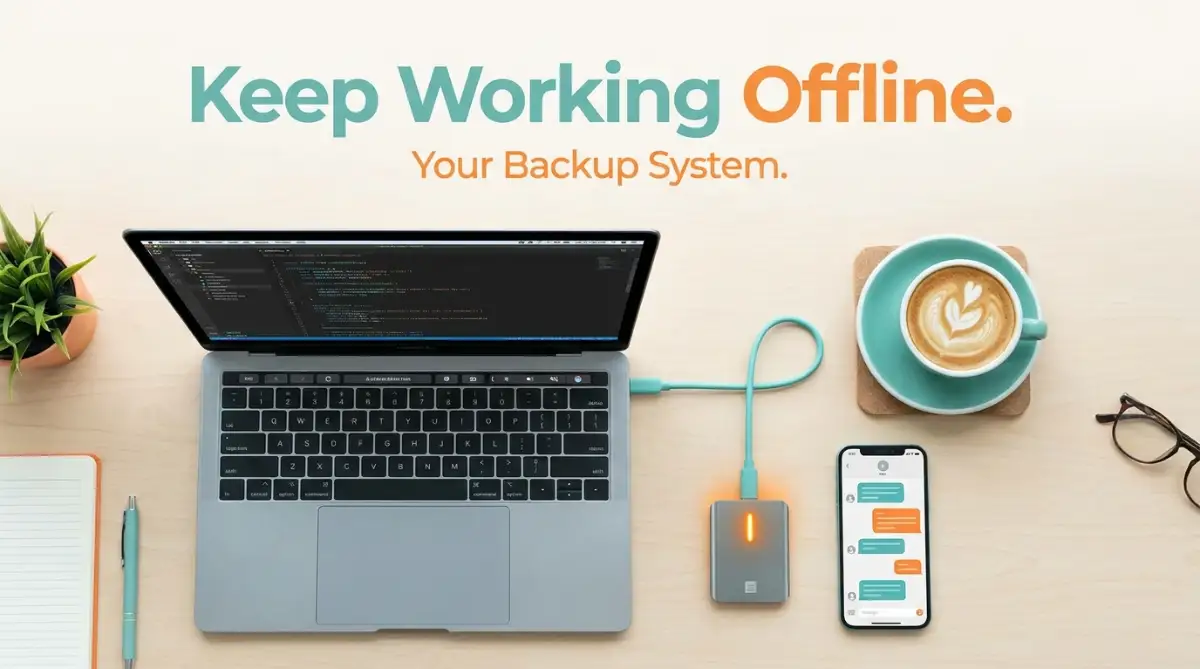
The Double-Network Connection Strategy
Sometimes the software is working perfectly fine, but your local internet provider completely drops the ball. A cut cable down the street can instantly disconnect you from your digital office. Relying on a single home Wi-Fi router is a very dangerous game for any remote professional.
You must build a secondary road to the internet. The easiest way to do this is by mastering mobile tethering. Most modern smartphones allow you to share your cellular data with your laptop. Take the time today to practice turning on your personal hotspot and connecting your work computer to it.
If you live in an area with unpredictable power or internet, consider investing in a dedicated 5G mobile hotspot device from a different network provider. If your main home internet is provided by Company A, make sure your mobile hotspot uses the network from Company B.
If Company A has a massive regional failure, Company B will likely still be running perfectly. This physical separation of services ensures a single broken wire cannot destroy your workday. It is a small monthly investment that pays for itself the very first time you save a project deadline.
Managing Client Expectations During Downtime
Even with the best technical backups in the world, sometimes an outage completely stops a specific project. If the client's own servers are down, you cannot deliver the final product. How you handle the communication in these moments defines your professional reputation.
Never hide behind an outage or go completely silent. As soon as you notice a widespread platform failure, proactively reach out to your clients. Use your backup communication methods to send a clear, calm update. Let them know you are aware of the situation and you are actively working on offline tasks while monitoring the servers.
People respect professionals who take control of bad situations. When you message a client saying, "The cloud platform is currently experiencing a global outage, but I have local backups and will upload the files the minute it resolves," you sound like an absolute expert. You turn a stressful delay into an opportunity to show how organized and reliable you are.
You can also use this forced downtime to handle administrative tasks you usually ignore. Organize your local folders, clean up your hard drive, or plan your schedule for the next week. Downtime does not have to mean wasted time. By shifting your focus to offline productivity, you maintain your momentum and keep your mind completely stress-free.
Mastering Your Unbreakable Remote Workflow Strategy
Setting up a basic offline folder is a great start, but true digital security requires a slightly deeper level of planning. If you want to sleep soundly knowing your income is completely safe from random server crashes, you need to think like a professional data manager. You do not need an IT degree to do this. You just need a few smart habits built into your daily routine.
I remember a specific incident where an entire region lost access to a major software suite for almost three full days. I watched my freelance friends panic on social media, completely unable to work or bill their clients. Meanwhile, my workflow barely skipped a beat because I had already set up a silent, automated safety net. Let me show you exactly how to build this hidden layer of protection.
The Magic Of Cross-Platform Syncing
Most people keep all their eggs in one digital basket. If you use a single storage provider for all your client contracts, invoices, and active projects, you are entirely at their mercy. The smartest thing you can do today is set up an automated bridge between two completely different competing services.
You can easily find third-party automation apps that run quietly in the background of your computer. You set a rule that says every time you save a final draft in Provider A, it automatically sends a duplicate copy to a hidden folder in Provider B. This means if Provider A experiences a massive data center fire, you just log into Provider B and keep working.
This approach completely removes the stress of manual transfers. You do not have to remember to copy and paste files every single evening. The software does the heavy lifting for you while you focus on actually doing your job. According to the official data protection guidelines from the National Institute of Standards and Technology (NIST), maintaining diverse, automated backups is the only guaranteed way to ensure continuous business operations during a sudden failure.
Scheduling A Monthly "Fire Drill"
You would never buy a spare tire for your car and then wait ten years to see if it actually holds air. The same logic applies to your offline work systems. A backup plan is completely useless if you do not know exactly how to use it when the pressure is on.
Pick one random Friday morning every single month and pretend the internet is completely broken. Turn off your Wi-Fi router, disconnect your ethernet cable, and try to start your workday. This simple exercise will instantly reveal the hidden flaws in your emergency strategy.
You might suddenly discover that your favorite desktop software requires an online login check every thirty days. You might find out that your offline reference notes are three months out of date. Finding these errors while you are calmly sipping tea is much better than discovering them during a live client presentation.
Building A Local Knowledge Vault
When the servers go down, you lose more than just your current project files. You lose access to your company handbooks, your saved email templates, and your brand style guides. Without these reference materials, even simple tasks become incredibly frustrating.
Start building a master folder directly on your computer's hard drive that holds your most important reference documents. If you regularly use artificial intelligence to help draft emails or code, save your best prompts in a simple offline text file. Just like learning the beginner's guide to crafting AI prompts without needing code, having your customized instructions available offline means you never lose your creative momentum.
You should also download PDF copies of important client emails and project briefs. If the main server crashes and takes your email inbox with it, you still have the exact project requirements saved locally. You can keep writing, designing, or planning without needing to ask the client to repeat themselves.
Securing Your Hardware Power Supply
We talk a lot about the software side of things, but hardware failures are just as common. A sudden power outage can instantly knock out your home internet router, even if the primary cloud servers are working perfectly fine. If your laptop battery is old and weak, your offline plan will only last about twenty minutes.
Consider investing in an Uninterruptible Power Supply (UPS) for your home office. This is essentially a massive battery backup for your desk. If the power cuts out, the UPS keeps your monitor, your laptop, and your external hard drives running long enough for you to safely save your work.
You also need to manage the power drain on your secondary devices. If you are using your smartphone as a mobile hotspot, it will drain battery incredibly fast. It is exactly like figuring out why your smartwatch keeps dying due to hidden settings; you must optimize your phone by turning off unnecessary background apps while tethering. Keep a dedicated power bank fully charged and sitting in your desk drawer strictly for emergencies.
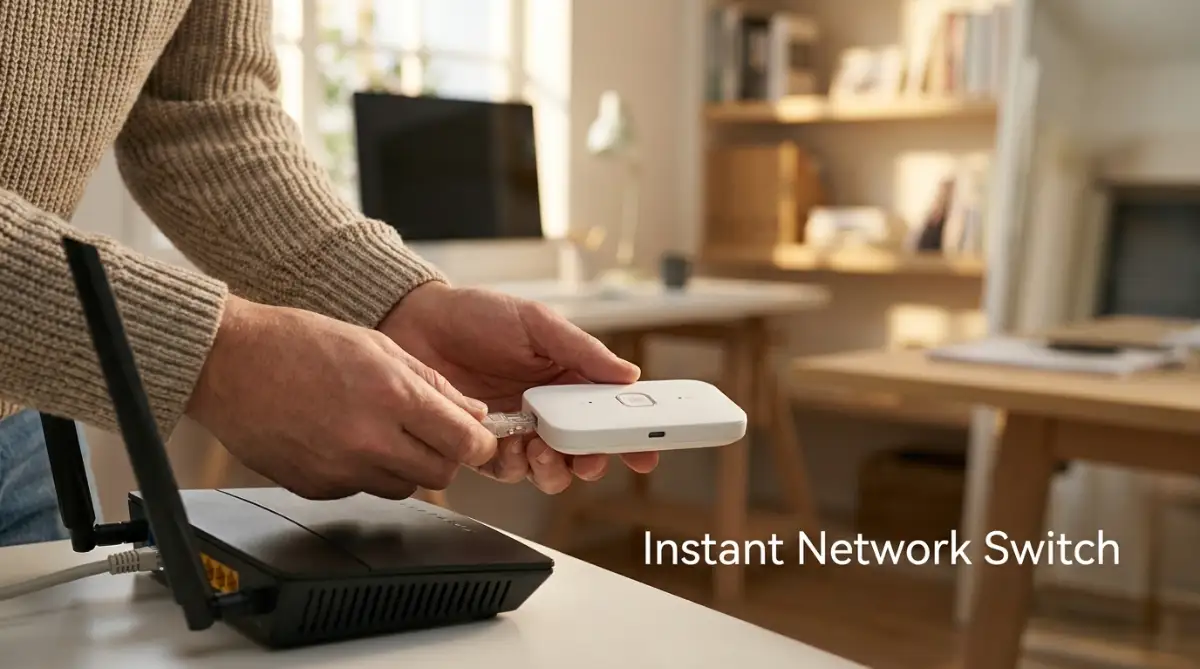
The Dangerous Traps That Will Destroy Your Backup System
Setting up an emergency workflow feels amazing. You instantly feel more professional and prepared. However, people often make a few invisible mistakes that completely ruin their setup. I have seen highly skilled professionals lose weeks of work because they fell into these common traps.
The Fake Offline File Trap
This is the absolute most common mistake I see remote workers make. Modern storage apps try to save hard drive space by creating "smart sync" files. They show a file icon on your desktop, but the actual file still lives on the internet.
When you double-click that file during an outage, you get a nasty error message saying the content cannot be downloaded. You thought you had a local backup, but you only had a tiny shortcut link. This realization is incredibly painful when a client is waiting for a delivery.
You must manually go into your storage app settings and explicitly mark your important folders as "Available Offline." This forces the app to download the heavy, complete version of the file directly to your physical machine. A recent report on local network resilience by the Internet Society highlights that assuming cloud shortcuts are physical backups is a leading cause of data loss during regional outages. Always verify your files by opening them while your internet is completely turned off.
Putting All Backups On The Same Network
Imagine buying two expensive security safes for your most valuable documents and then leaving the keys to both safes under your front doormat. That is exactly what you are doing if your primary storage and your secondary storage both rely on the exact same internet connection.
If your neighborhood experiences a fiber cable cut, it does not matter how many different web services you use. You are completely locked out of everything at the exact same time. This is why having a physical, disconnected external hard drive is absolutely non-negotiable.
Your physical backup drive should never remain permanently plugged into your computer. If you accidentally download a nasty virus, it can easily jump from your laptop straight into your connected backup drive. Plug it in, copy your files, and then put it safely back in a drawer. Treating your digital security lightly is just as risky as ignoring how to protect your personal assets from sudden business loan risks. Protect your work files with the same aggressive energy you use to protect your money.
Ignoring Software License Verification
We briefly touched on this earlier, but it deserves a deep dive. Many creative professionals use expensive subscription software that claims to work offline. However, these programs have hidden security triggers built into their code.
If the software has not connected to the mother server in a few days, it might suddenly lock you out to verify your monthly payment. There is nothing more frustrating than having perfect internet, a perfectly good file, and software that refuses to let you click the save button.
Always open your heavy work programs at least once a week while connected to a strong internet signal. This resets the internal security timer and guarantees the software will open smoothly if the servers crash later that week. It is a tiny habit that prevents massive headaches.
My Personal Software Trick:
Do not trust the "work offline" button until you actually test it. Turn off your computer's Wi-Fi completely, then try to open your heavy design or writing software. If a pop-up blocks you and asks for an email login, that software is useless during a real internet blackout. Find a true offline alternative today.
Relying Solely On Web-Based Writing Tools
If you are a content creator, marketer, or copywriter, you probably draft your articles directly into a Content Management System (CMS) or a browser-based text editor. This is incredibly dangerous. Web browsers are notoriously unstable when the internet connection flickers.
If the server drops while you are typing, you can lose thousands of words in a single second. The auto-save feature only works if there is a server to save to. I once lost an entire morning of intense writing because the platform updated its interface while I was in the middle of a sentence.
Always draft your text in a basic, offline application like Notepad, Apple Notes, or a dedicated markdown editor. Once the text is perfectly polished, then you can paste it online. This offline drafting method also helps you spot issues clearly, much like catching the silent formatting mistakes that drive readers away from newly published articles. Keeping your messy first drafts on your local machine keeps your data 100% safe from random web glitches.
Your Next Steps Toward Total Digital Peace Of Mind
You now have a massive advantage over the average remote worker. While everyone else is refreshing broken web pages and panicking on social media, you will calmly switch to your offline system and finish your day. Building this safety net is not about expecting the worst; it is about respecting your own time and hard work.
Start extremely small today. You do not need to buy expensive gear right now. Take just ten minutes this evening to download your most active project file to your desktop. Create a secondary group chat with your closest colleagues. These tiny, free actions instantly build a massive wall of protection around your career.
By taking control of your local files, mastering your alternative internet connections, and preparing your team for sudden silence, you become truly unstoppable. You stop being a victim of technology and start acting like a true professional who is always prepared for the unexpected.
As remote workers, we have to guard our digital environment constantly. It is exactly like staying alert and spotting the silent warning signs of fake remote job offers before getting trapped. You must protect your daily workflow with intense intention and smart planning.
I finally sleep better knowing my income does not depend on a random server halfway across the world. Take ten minutes today to set up your local backup folder, and I promise you will feel an immediate sense of relief.
Questions Remote Workers Always Ask About Cloud Outages
Do I really need a physical hard drive if I use two different online services?
Yes, having a physical drive is an absolute requirement for complete security. If your local internet provider goes completely dark, both of your online services become entirely useless. A physical hard drive on your desk is the only way to guarantee you can access your work without a Wi-Fi signal.
How often should I update my offline work files?
If you are working on a high-priority daily project, you should copy the final version to your local drive every single evening when you log off. For general reference materials or company guides, updating your offline folder once a month is usually plenty.
Can I actually run my entire business from a mobile phone hotspot?
You can easily handle basic tasks like sending emails, managing team chats, and editing text documents using a mobile hotspot. However, you should completely avoid heavy tasks like uploading massive video files or doing live screen-share presentations, as these will drain your data plan rapidly.
What happens if my offline software asks for a login check during an outage?
This is a very common issue with modern subscription tools. To prevent this, make sure you open all your primary software apps at least once a week while connected to a strong home network. This resets their internal security clock and ensures they will run perfectly in offline mode later.
Will my team think I am slacking off if the main server breaks?
They will only think that if you completely disappear without warning. If you immediately use a backup chat app to announce the outage and explain that you are working on local files, your team will see you as highly organized and responsible. Communication completely kills suspicion.
Disclaimer: The information provided in this article is for educational and informational purposes only. We are not IT professionals or certified network engineers. Always consult with your company's official IT department before changing software settings, bypassing standard security protocols, or downloading third-party tools to company-owned hardware. We are not responsible for any lost data or software conflicts that may arise from implementing these strategies.